Introduction
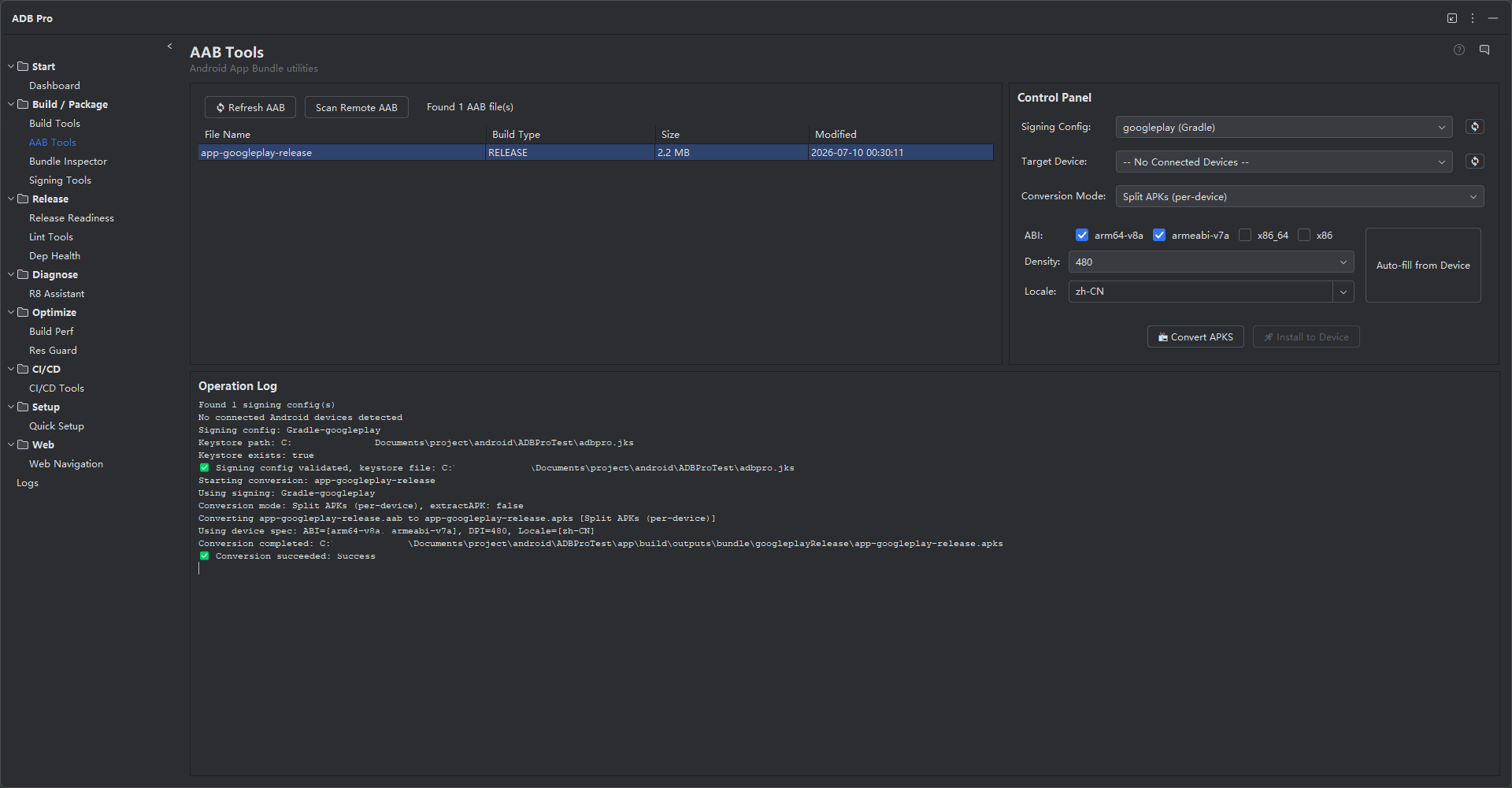
AAB Tools is the flagship module of ADB Pro, providing a fully integrated workflow for converting, signing, and installing Android App Bundles (.aab files) directly from your JetBrains IDE. At its core, it wraps Google's bundletool with a visual UI that handles binary management, device detection, and signing configuration automatically.
When you build an Android app for release, Gradle produces an .aab file rather than a directly installable APK. To test that bundle on a physical device or emulator, you need to convert it to a device-specific .apks archive, sign it with a valid keystore, and push it via ADB. AAB Tools consolidates all of these steps into a single panel, eliminating context-switching between the IDE, terminal, and file manager.
For device labs, AAB Tools can also install one selected AAB to multiple online devices in sequence. Batch installs use Universal APK mode for the conversion so every selected device receives the same broadly compatible APK, while targeted single-device installs can still use device-specific split APKs for closer Play-style testing.
For QA teams and release managers, AAB Tools also supports scanning remote repositories (GitHub, GitLab) for release-candidate bundles, enabling a download-convert-install pipeline without ever leaving the IDE.
Need only AAB to APKS conversion?
AAB Tools is also available as a free standalone JetBrains plugin from the ADB Pro ecosystem. Use it when you only need bundletool conversion and device installation. Stay with ADB Pro when you need the complete release workflow: signing verification, bundle inspection, release readiness, R8, resource obfuscation, CI/CD, dependency health, and build performance.
Why Use AAB Tools?
Working with Android App Bundles manually introduces friction at every step of the release pipeline:
- Command-line bundletool complexity — Converting an AAB to an installable format requires downloading bundletool separately, remembering the correct flags (
build-apks,--mode=universal,--connected-device), and specifying output paths manually. - Keystore management overhead — Each conversion requires pointing bundletool at the right keystore file, alias, and passwords. Switching between debug and release keystores means retyping paths or maintaining shell scripts with credentials embedded.
- No remote repository support — Testing a release candidate from GitHub or GitLab means downloading the AAB manually through a browser or API call, then repeating the entire local conversion and install process.
- Fragmented tooling — The standard workflow jumps between Gradle output, bundletool CLI,
adb install, and file manager. There is no single view that ties the build artifact to the installed result. - Missing build artifacts — Locating the correct
.aabfile among multiple build output directories is error-prone, especially in multi-module projects with several flavor and build-type combinations.
Features
AAB to APKS Conversion
ADB Pro automatically detects .aab files produced by your Gradle builds and converts them to .apks archives using bundletool. The bundletool binary is downloaded, version-checked, and managed automatically by the plugin — no manual installation required. Conversion supports multiple modes including universal APKs for testing, device-specific splits for accurate installs, and standalone APKs for legacy device compatibility.
One-Click Install
Once an AAB has been converted to APKS, ADB Pro handles installation to any connected device or emulator in a single click. The plugin manages ADB path discovery, device enumeration, and installation status reporting. Multi-device installs are supported with a selectable device table, letting you push the same bundle to several chosen online targets sequentially without repeating the conversion step.
Universal APK Batch Install
When installing one AAB to multiple devices, ADB Pro uses Universal APK conversion for that batch operation. This avoids the common failure where split APKs generated for one phone do not match another phone's ABI, density, or locale. If you need a device-specific split package, use the targeted single-device workflow and auto-fill conversion options from that device.
Signing Configuration
AAB Tools parses signing configurations directly from your build.gradle or build.gradle.kts files, populating keystore paths and key aliases automatically. Manage multiple keystores and key aliases through a favorites system for instant switching. All passwords are stored securely via IntelliJ's PasswordSafe API — credentials are never written to plain-text config files or shell history.
Remote Repository Scanning
Configure GitHub or GitLab repositories to scan for AAB files attached to release assets. ADB Pro lists available bundles with version tags, download sizes, and upload dates. Download remote bundles, convert, and install directly — particularly useful for QA teams who need to test release candidates produced by CI/CD pipelines without requiring local build access.
File Scanning
AAB Tools automatically scans your project's build output directories (build/outputs/bundle/) for AAB files. The latest build artifacts appear instantly in the panel, sorted by modification time. No file dialogs or manual browsing required — the most recent AAB is always one click away.
AAB File Selection Dialog
When multiple AAB files are present —across different variants, modules, or external locations —the file selection dialog lets you pick the exact bundle to convert or install. It displays file name, size, modification date, and variant information for each candidate. You can also browse to AAB files outside the project directory, such as downloaded CI artifacts or bundles received from other developers.
Remote AAB Cache
Downloaded AAB files from remote repositories are cached locally so you don't need to re-download them for every install. The cache is managed automatically —older entries are cleaned up based on age and available disk space. Cached bundles are available offline, making it easy to re-install a specific release candidate without network access.
Conversion Mode Options
When converting AAB to APKS, ADB Pro supports multiple output modes: universal APK (a single APK for all devices), device-specific split APKs (optimized for a connected device's ABI, screen density, and locale), and standalone APKs for legacy device compatibility. You can filter splits by ABI (e.g., arm64-v8a only), screen density, or locale to produce leaner output for specific target devices. Your last-used conversion settings are remembered across sessions.
Gradle Signing Config Integration
AAB Tools can read signing configurations directly from your build.gradle.kts files instead of requiring manual keystore input. Select from detected signing configs (e.g., release, debug) and the plugin automatically populates the keystore path, key alias, and prompts for passwords. This ensures the APKS archive is signed with the same credentials as your production builds, avoiding signature mismatches during install.
Getting Started
AAB Tools settings are accessible from Settings > Tools > ADB Pro > AAB Tools. From there you can configure:
- Custom bundletool path (override the auto-managed version)
- Default signing configuration and favorite keystores
- Remote repository credentials and scan patterns
Quick-access actions are also available under the Tools > ADB Pro menu: Quick Install AAB, Select and Install AAB, Convert AAB to APKS, and Install APKS File.
./gradlew bundleRelease
# 2. ADB Pro auto-detects the .aab output
# 3. Click "Convert" in the AAB Tools panel
# - bundletool generates a signed .apks archive
# 4. Select a target device, or choose multiple batch devices
# 5. Click targeted install for split APKS, or batch install for Universal APK
Verification
After using AAB Tools, confirm that everything worked correctly:
- Check that the
.apksfile appears in the output directory alongside the original.aabafter conversion. - After installation, verify the app launches on the target device or emulator and displays the expected version name and version code.
- For batch installs, review each selected device row and confirm the per-device result reports a successful install.
- Run
apksigner verify --verbose --print-certs app.apksto confirm that the signing certificate matches the keystore you selected. - Use
adb shell pm list packages | grep <your.package>to confirm the correct package name is installed on the device. - If using remote repository scanning, verify the downloaded AAB's SHA-256 checksum matches the one listed in the release notes.
References
- Android App Bundle Guide — Official overview of the AAB format, delivery mechanisms, and Play Store requirements.
- bundletool CLI Reference — Complete documentation for all bundletool commands including
build-apks,install-apks, andget-size. - App Signing Documentation — Google's guide to keystore management, signing schemes, and Play App Signing.