Introduction
Build Performance provides build profiling and Gradle configuration health checks to help you identify slow tasks and optimize your Android build pipeline. It turns opaque Gradle internals into actionable data — showing exactly which tasks consume the most time, whether your configuration is optimal, and what changes will yield the biggest speed improvements.
Rather than guessing why builds are slow or blindly copying optimization tips from blog posts, you get precise, project-specific measurements. Build Performance combines task-level timing breakdowns, configuration health checks, and prioritized optimization recommendations into a single view so you can make informed decisions about where to invest your effort.
For teams that want even deeper analysis, Build Performance integrates with Gradle Build Scans to provide timeline views, network activity, plugin performance, and dependency resolution details directly from the Gradle Enterprise dashboard.
Why Use Build Performance?
Slow builds are one of the biggest productivity drains in Android development, and the problem often goes unnoticed until it becomes severe:
- Build times creep up silently — Each new dependency, module, or annotation processor adds a few seconds. Over months, a build that once took 30 seconds grows to 5 minutes without anyone noticing when the tipping point occurred.
- Suboptimal Gradle configuration — Many developers never enable the Gradle daemon, parallel builds, or build cache. These features are not always on by default, and the performance difference between a well-configured and poorly-configured
gradle.propertiescan be dramatic. - No visibility into task-level timing — Running
./gradlew assembleDebugtells you the total wall-clock time, but not which tasks are the bottleneck. Without a breakdown, you cannot tell if compilation, resource merging, or dex conversion is the culprit. - Incremental builds that are not incremental — Tasks that should be up-to-date or served from cache sometimes re-execute due to unexpected input changes. Without analysis, you have no way to know your "incremental" build is doing a full rebuild.
Features
Task-Level Profiling
Run any Gradle build with profiling enabled and get a detailed breakdown of how long each task took. The profiler captures execution times for every task in the build lifecycle — from :app:preBuild through :app:assembleRelease — and displays them in a sortable table with percentage-of-total indicators. Tasks are color-coded by duration: green for fast, yellow for moderate, and red for slow. Sort by duration to instantly identify bottlenecks like annotation processing, resource merging, or Dex merging.
Configuration Health Checks
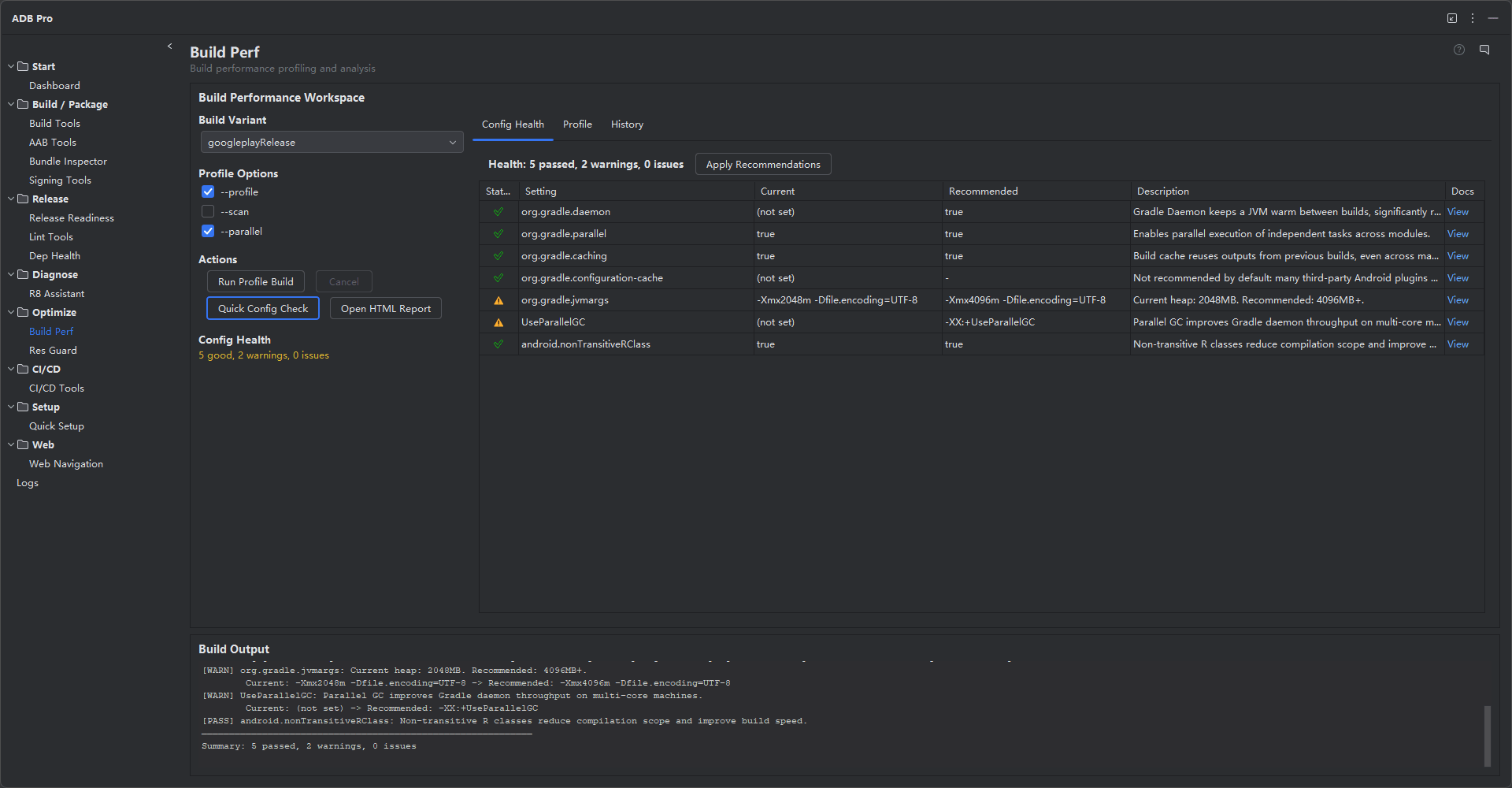
Build Performance inspects your Gradle setup and reports on configuration options that significantly impact build speed. Each check produces a clear status with a recommendation:
- Gradle Daemon — Is the daemon running? A cold daemon adds 10-30 seconds to the first build.
- Parallel Builds — Is
org.gradle.parallel=trueset ingradle.properties? Parallel execution runs independent module tasks concurrently. - Build Cache — Is
org.gradle.caching=trueenabled? The build cache reuses outputs from previous builds, including across machines with a remote cache. - JVM Memory — Is
org.gradle.jvmargsconfigured with adequate heap size? An under-provisioned JVM causes GC pauses during compilation. - Kotlin Incremental Compilation — Is Kotlin incremental compilation enabled? This dramatically speeds up Kotlin-only changes.
Optimization Recommendations
Based on profiling results and health checks, Build Performance generates a prioritized list of recommendations. Each recommendation includes an estimated time savings, the effort required to implement it, and a link to relevant documentation. Recommendations are ranked by impact-to-effort ratio so you can pick the quick wins first. Common recommendations include enabling parallel builds, configuring the build cache, splitting large modules, and disabling unused annotation processors.
Incremental Build Analysis
Run the same build task twice and Build Performance compares the two runs. The analysis shows which tasks were UP-TO-DATE, FROM-CACHE, or re-executed — and for re-executed tasks, it explains why (input changed, output removed, dependency changed). This is critical for understanding why your "incremental" build is doing more work than expected and how to structure your project for better caching behavior.
Build Scan Integration
For deeper analysis, Build Performance can trigger a Gradle Build Scan by appending --scan to your build command. When the scan completes, ADB Pro extracts the scan URL and displays it in the panel with a direct link to the Gradle Enterprise dashboard.
Profiling Output Example
Tasks: 147 executed, 23 up-to-date, 12 from-cache
Top 10 slowest tasks:
1. :app:compileReleaseKotlin 42.3s (27.5%)
2. :app:mergeReleaseResources 28.1s (18.2%)
3. :app:kaptReleaseKotlin 19.7s (12.8%)
4. :app:mergeDexRelease 15.2s (9.9%)
5. :app:lintVitalAnalyzeRelease 12.8s (8.3%)
6. :app:processReleaseManifest 6.4s (4.2%)
7. :app:compileReleaseJava 5.9s (3.8%)
8. :app:packageRelease 4.2s (2.7%)
9. :app:stripReleaseDebugSymbols 3.8s (2.5%)
10. :app:shrinkReleaseRes 3.1s (2.0%)
Configuration Health Report
| Check | Status | Impact | Recommendation |
|---|---|---|---|
| Gradle Daemon | Running | High | No action needed |
| Parallel Builds | Disabled | High | Add org.gradle.parallel=true to gradle.properties |
| Build Cache | Enabled | High | No action needed |
| Configuration Cache | Disabled | Medium | Enable with org.gradle.configuration-cache=true |
| JVM Heap | 2 GB | Medium | Consider increasing to 4 GB for large projects |
| Kotlin Incremental | Enabled | High | No action needed |
Getting Started
Build Performance is accessible from multiple entry points:
- Tools > ADB Pro > Profile Build — runs the selected build task with profiling enabled
- Tools > ADB Pro > Run Health Check — inspects Gradle configuration without running a build
- ADB Pro side panel — click the "Build Performance" tab for profiling results and recommendations
- Build Scan — click "Run with Build Scan" in the panel toolbar to trigger a Gradle Enterprise scan
To profile a build:
- Select Tools > ADB Pro > Profile Build.
- Choose the build task to profile (e.g.,
assembleDebug,assembleRelease). - ADB Pro runs the build with timing instrumentation and displays the results in the Build Performance panel.
- Review the task-level breakdown. Sort by duration to find the slowest tasks.
- Run a health check from Tools > ADB Pro > Run Health Check to see configuration flags that may be contributing to slow builds.
- Address the recommendations one by one, starting with the highest-impact, lowest-effort items.
To configure defaults, go to Settings > Tools > ADB Pro > Build Performance. Here you can set the default build task for profiling, the slow task threshold (duration at which tasks are highlighted in red), automatic health check on project open, Build Scan auto-upload behavior, and profile history retention (default: 20 sessions).
Verification
After running profiling and health checks, confirm the results are actionable:
- The profile output shows a task-level timing breakdown with execution times and percentage-of-total for every task in the build.
- The health check report lists each configuration flag (daemon, parallel, cache, JVM, Kotlin incremental) with a clear pass/fail status.
- Address each flagged health check item one by one (e.g., add
org.gradle.parallel=truetogradle.properties). - After applying optimizations, run another profiled build and compare the total build time to the baseline.
- Subsequent builds show measurable time improvement — the total wall-clock time decreases and more tasks are served from cache or reported as up-to-date.