Introduction
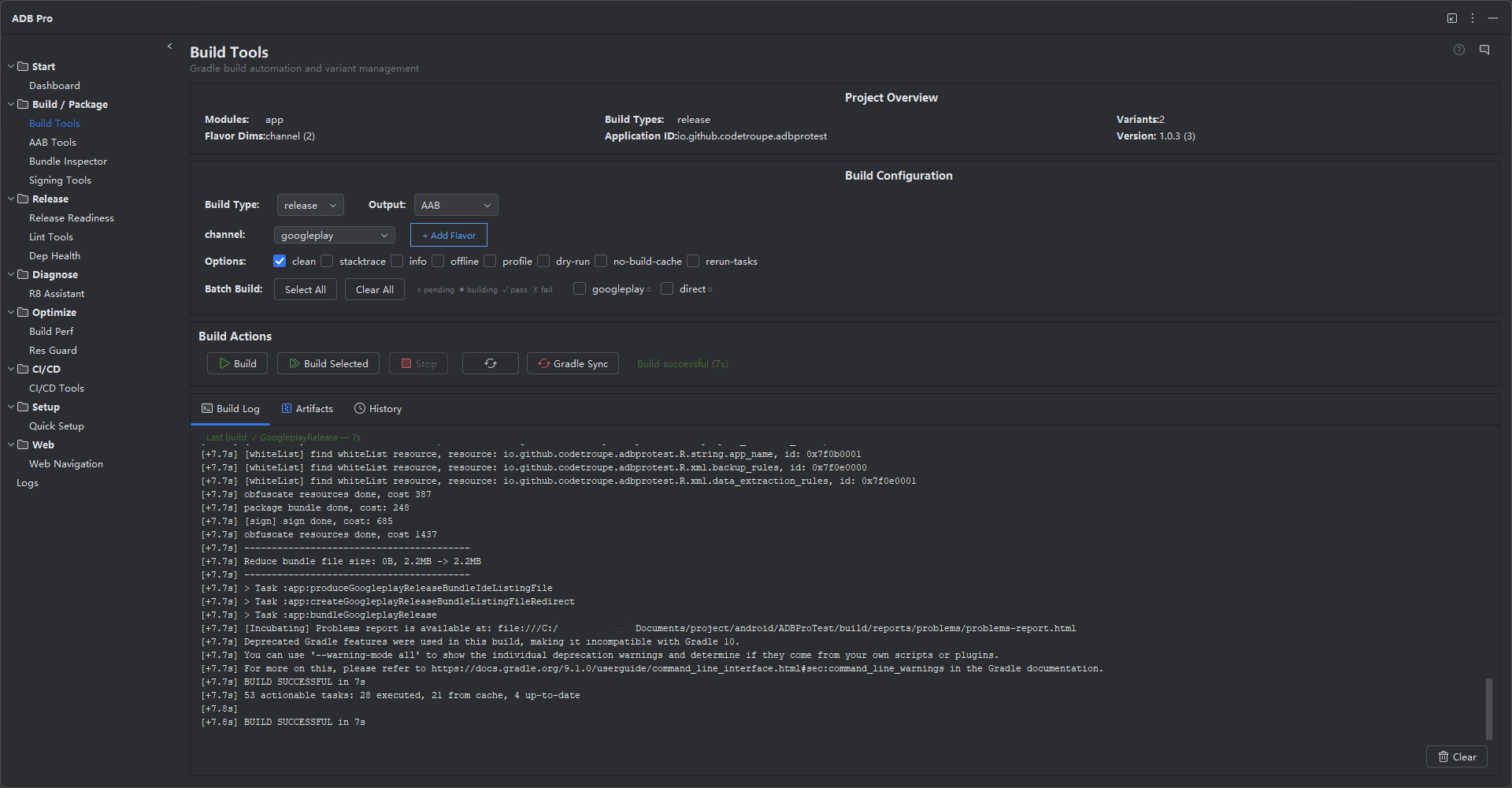
Build Tools brings Gradle build automation into your JetBrains IDE with a visual panel that understands your Android project structure. Instead of memorizing Gradle task names and flavor combinations, you pick variants from a dropdown, trigger builds with a click, and monitor output in real time — all without opening a terminal.
The module parses your build.gradle or build.gradle.kts files to detect available build types, product flavors, and their combinations. It then presents them as selectable variants, automatically constructing the correct Gradle task names (e.g., assembleFreeRelease, bundlePaidDebug). Build results, including timestamps, durations, exit codes, and artifact paths, are recorded locally in a history table for future reference.
For release managers and teams working with multiple app variants, Build Tools supports batch builds across all flavor combinations and provides instant artifact location so you can hand off the output APK or AAB to Signing Tools or AAB Tools without leaving the panel.
Why Use Build Tools?
Standard Android builds involve repetitive terminal work and poor visibility into what was produced:
- Terminal context-switching — Every build requires opening a terminal, typing
./gradlew assembleFreeRelease, waiting, then switching back to the IDE. The constant window-switching breaks focus and slows iteration cycles. - Variant name memorization — Projects with multiple flavors and build types produce dozens of variant combinations. Remembering whether it is
assembleFreeArmv7ReleaseorassembleFreeArmv7aReleasewastes time and leads to typos. - No build history — Once terminal output scrolls away, there is no easy way to check when a build ran, how long it took, or whether it succeeded. This makes it hard to audit build activity or compare iteration times.
- Finding output artifacts — After a successful build, locating the correct APK or AAB in
build/outputs/requires navigating a deep directory tree. Multi-module projects make this even harder with several output directories to check. - No batch build support — Producing builds for all flavor combinations requires writing shell scripts or running the same Gradle command repeatedly with different arguments, one at a time.
Features
Gradle Task Execution
Run any Gradle task directly from the Build Tools panel. Common tasks like assembleDebug, assembleRelease, bundleRelease, and clean are available as one-click buttons. Custom tasks can be entered manually and are saved for reuse across sessions. Build output streams to the panel in real time, with syntax highlighting for errors and warnings, so you can monitor progress without switching to a terminal window.
Variant Management
ADB Pro parses your build configuration to detect all available build variants, including product flavors, build types, and ABI splits. Select the exact variant you need from a dropdown — no more typing assembleFreeRelease by hand. The selected variant persists across IDE sessions, so your last-used configuration is always ready when you reopen the project. Variant detection updates automatically when you modify your Gradle files.
Batch Builds
Need to build all flavor combinations at once? Batch mode queues multiple variant builds and runs them sequentially through the Gradle daemon. This is ideal for release managers who need to produce APKs for free/paid variants, multiple ABIs, or white-label builds. Each build result is logged independently with success or failure status, so you can see at a glance which variants built correctly and which need attention.
Build History
Every build is recorded with its timestamp, variant name, Gradle task, duration, exit code, and output artifact path. Review past builds in a sortable table to find which variant was built last, how long it took, or whether it succeeded. History is stored locally in the IDE project settings and never leaves your machine. Use it to track build time trends or confirm what was produced before a release.
Artifact Location
After a successful build, ADB Pro automatically locates the output APK or AAB file and shows its full path in the panel. Click to reveal the file in your system file manager, copy the path to clipboard, or pass it directly to Signing Tools or AAB Tools for the next step in your release pipeline. No more navigating build/outputs/apk/ directories manually.
Add Flavor Dialog
Adding a new product flavor to your build configuration no longer requires hand-editing Gradle files. The Add Flavor dialog provides a guided form with fields for flavor name, dimension (choose from existing dimensions or create a new one), application ID override, signing config selection, and optional buildConfigField declarations. As you fill in the form, a live code preview shows the exact Kotlin DSL or Groovy DSL block that will be inserted. The dialog auto-detects the next sequential buildConfigField value based on existing flavors, validates naming rules, and checks for duplicate names before writing.
create("staging") {
dimension = "env"
buildConfigField("int", "ENV_TYPE", "2")
applicationId = "com.example.app.staging"
signingConfig = signingConfigs.getByName("debug")
}
Build Parameters
Fine-tune every build with a set of toggleable Gradle parameters directly in the Build Tools panel. Common options are available as checkboxes: clean before build, --stacktrace, --info, --debug, --offline, --profile, --dry-run, --no-build-cache, and --rerun-tasks. These are appended to your Gradle command automatically, so you do not need to type them in the terminal. The selected parameters persist across builds, making it easy to keep --stacktrace enabled during development or --offline when working without network access.
Artifact Renaming Templates
After a build completes, the output APK or AAB can be automatically renamed using a configurable template. Built-in template variables include ${appName}, ${versionName}, ${versionCode}, ${flavor}, ${buildType}, ${date} (yyyyMMdd), and ${time} (HHmmss). The default template produces filenames like MyApp_v1.2.0_20260616_freeRelease.apk. Renaming is non-destructive —the original file is renamed in place, and the new path is recorded in the build history entry. This is especially useful for CI/CD pipelines and release managers who need to archive builds with consistent, version-stamped filenames.
Output Type Selection
Choose whether each build produces an APK, an AAB (Android App Bundle), or both. When "Both" is selected, Build Tools runs assemble and bundle tasks in sequence and records both artifacts in the build history. This is handy for release workflows where the AAB goes to the Play Store while a universal APK is needed for internal testing or direct distribution.
Getting Started
Build Tools settings are accessible from Settings > Tools > ADB Pro > Build Tools. From there you can configure:
- Custom Gradle executable path (default: project Gradle wrapper)
- Additional Gradle arguments (e.g.,
--stacktrace,--parallel,-Pci=true) - Default build variant on project open
- Build history retention limit (default: 50 entries)
- Post-build actions (auto-reveal artifact, notification sound)
Quick-access actions are available under the Tools > ADB Pro menu: Build Current Variant, Build All Variants, Locate Last Artifact, and View Build History.
Build Types: debug, release
Flavors: free, paid (dimension: "tier")
ABIs: arm64-v8a, x86_64 (via splits)
# Available variants in the dropdown:
freeDebug | freeRelease
paidDebug | paidRelease
# Select a variant and click "Build"
# Or use batch mode: select all 4 and click "Build All"
Verification
After running a build through Build Tools, confirm that everything worked as expected:
- Check that the build output appears in the Build Tools log panel with a green success indicator and the correct task name.
- Navigate to
build/outputs/apk/orbuild/outputs/bundle/and confirm the expected APK or AAB file exists with a recent modification timestamp. - Open the Build History table and verify a new entry was recorded with the correct variant, timestamp, duration, and artifact path.
- Use the "Locate Last Artifact" action to confirm the file manager opens at the correct output directory.
- If using batch mode, check that all selected variants show individual success or failure statuses in the build log.
References
- Android Build System Guide — Official documentation on the Android Gradle Plugin, build lifecycle, and output artifacts.
- Gradle User Guide — Complete reference for Gradle task execution, daemon configuration, and command-line options.
- Build Variants Documentation — How to configure product flavors, build types, and variant-specific settings in your Android project.