Introduction
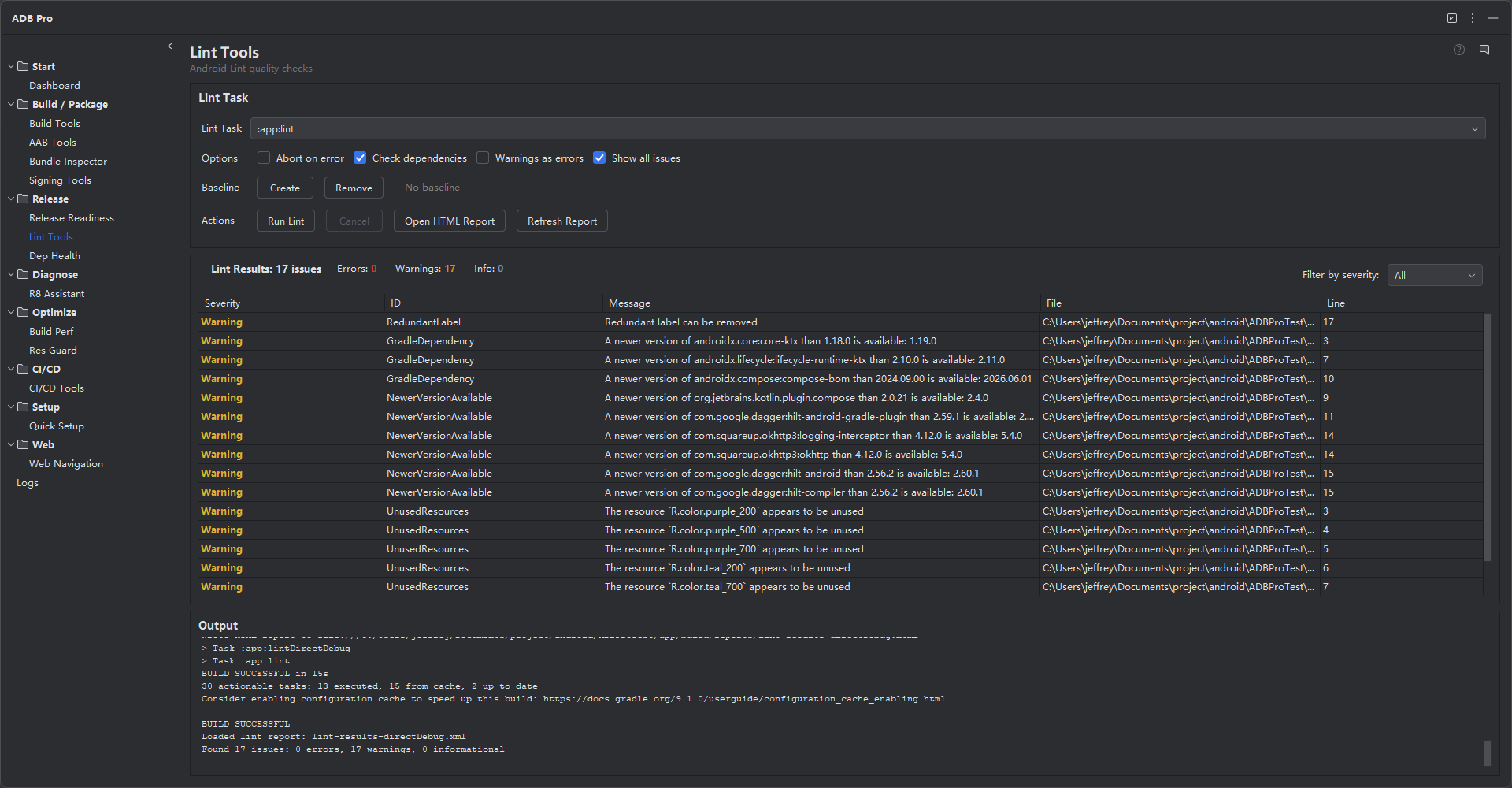
Lint Tools brings Android Lint integration directly into your IDE with parsed result visualization, severity filtering, and actionable fix suggestions. Instead of wrestling with raw XML output from Gradle-based lint runs, Lint Tools presents issues in a structured, navigable panel where you can filter by severity, jump to source, and apply corrections.
It wraps the full power of Android Lint —catching bugs, performance issues, accessibility problems, and security vulnerabilities —and adds baseline management and custom rule integration so you can adopt lint incrementally even in large codebases.
Run lint from the ADB Pro panel, review results without leaving your editor, and keep a baseline of known issues so only new violations surface in each run.
Why Use Lint Tools?
Android Lint is powerful but its raw output is difficult to work with. Here are the problems developers encounter without proper tooling:
- Lint warnings accumulate over time and get ignored. When a project has hundreds of existing warnings, developers stop noticing new ones —and the signal-to-noise ratio drops to zero.
- Raw lint output is hard to parse. The Gradle lint task produces a raw XML report that you need to open separately, making it tedious to navigate between issues and source code.
- No easy way to see severity breakdown. Without visual grouping by severity or category, it is impossible to quickly assess whether your codebase has critical issues or just cosmetic suggestions.
- Hard to prioritize which issues to fix first. Fatal errors that cause crashes should be fixed immediately, but they get buried alongside informational suggestions in a flat list.
Features
Lint Execution
Trigger a full lint analysis by clicking "Run Lint" in the ADB Pro panel or via Tools > ADB Pro > Run Lint. ADB Pro executes the lint Gradle task for your selected variant and streams progress to the panel. You can also run lint on a specific module or limit the check to a subset of issue categories for faster iteration.
Parsed Result Display
Lint results are parsed and displayed in a structured tree view grouped by category: Correctness, Performance, Security, Usability, Accessibility, and Internationalization. Each issue shows its ID, message, affected file, and line number. Click any issue to jump directly to the source location in your editor.
Severity Filtering
Filter lint results by severity level: Fatal, Error, Warning, or Information. Combine filters to focus on what matters —for example, show only Fatal and Error issues before a release, or include Warnings during a cleanup sprint. Filter state is preserved across lint runs for consistency.
Total issues: 47
Errors (3):
InvalidPackage src/main/java/.../ApiService.kt:42
MissingPermission src/main/java/.../LocationHelper.kt:18
GradleDependency build.gradle.kts:24
Warnings (31):
UnusedResources 14 issues across res/
HardcodedText 8 issues across layouts
ContentDescription 5 issues in layouts
...and 4 more categories
Information (13):
ObsoleteLintCustomCheck 3 issues
...and 2 more categories
Fix Suggestions
Each lint issue includes a description of the problem and, where available, a suggested fix. For common issues like missing contentDescription on ImageView, unused imports, or hardcoded strings, ADB Pro provides one-click quick fixes that apply the correction directly to your source file. More complex issues include a detailed explanation and a link to the official Android documentation.
Baseline Management
Lint baselines let you suppress known issues so that only new violations are reported. ADB Pro provides a visual interface for creating, updating, and reviewing baselines. When you run lint with a baseline in place, existing issues are hidden and only newly introduced problems appear —perfect for incremental adoption of lint in large codebases. You can also view exactly which issues are suppressed and remove entries that have been fixed.
Custom Rules
If your project includes custom lint rules (via a separate lint-checks module), ADB Pro detects them automatically and includes their results alongside the standard Android Lint checks. Custom rules are tagged with their source module so you can distinguish project-specific issues from built-in ones.
Getting Started
Run lint and configure options from these entry points:
- Open the Lint Tools tab in the ADB Pro side panel.
- Click "Run Lint" to execute a full lint analysis on the current build variant.
- Review results in the parsed tree view —use severity filters to focus on critical issues first.
- Click any issue to jump to its source location and apply the suggested fix.
- Create a baseline from the panel toolbar to suppress known issues and track only new violations going forward.
Additional entry points:
- Tools > ADB Pro > Run Lint —runs a full lint check on the current variant
- Right-click a module in the project view and select "Run Lint on Module"
- Baseline actions —create, update, or clear the lint baseline from the panel toolbar
Configure lint options at Settings > Tools > ADB Pro > Lint Tools:
- Default severity filter on panel open
- Lint check categories to include or exclude
- Baseline file path (default:
lint-baseline.xmlin the project root) - Auto-run lint after successful build
- Maximum issues displayed (for very large projects)
Verification
After running lint and applying fixes, confirm that Lint Tools is working correctly:
- Lint results table shows issue counts grouped by severity (Fatal, Error, Warning, Information) —verify the totals match your expectations.
- Zero Fatal errors is the minimum bar for a healthy codebase. Fatal issues indicate definite crashes or data loss at runtime.
- A baseline file has been created (typically
lint-baseline.xmlin the project root) to track known issues and suppress them from future runs. - After creating or updating a baseline, re-run lint to confirm that only new violations are reported.
- Click on any issue in the panel to verify that source navigation jumps to the correct file and line number.
References
Official documentation for Android Lint and custom lint rules: