Introduction
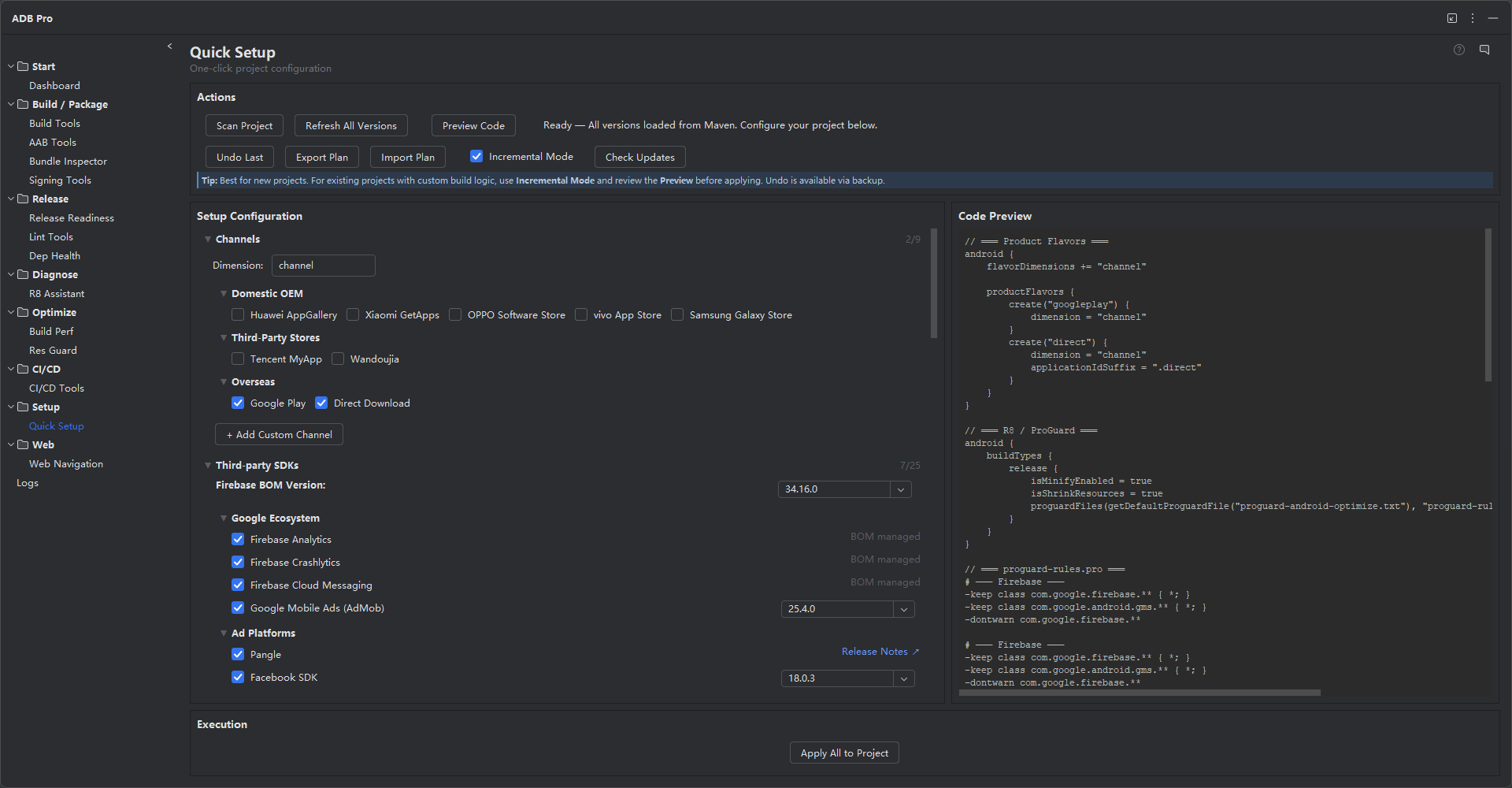
Quick Setup is the most powerful module in ADB Pro. It consolidates the work of multiple feature tabs — channels, SDKs, R8, Res Guard, CI/CD, and Build Performance — into a single guided workflow. Instead of manually editing build.gradle.kts files, proguard-rules.pro, libs.versions.toml, and CI/CD configs, you scan your project once, select the features you want, review a real-time code preview, and apply everything with one click.
The tool understands your project's existing configuration. It detects current flavors, dependencies, minify settings, AabResGuard configuration, and CI/CD setup. With Incremental Mode enabled, it skips already-configured items so you only add what's new. If anything goes wrong, the Undo Last button restores your project from an automatic backup.
Why Use Quick Setup?
Setting up an Android project with all the right configurations is tedious and error-prone. Here are the common pain points developers face:
- Manual Gradle editing — Setting up product flavors, adding dependencies, enabling minify, and configuring AabResGuard requires editing multiple files (
build.gradle.kts,proguard-rules.pro,libs.versions.toml,gradle.properties). One syntax error breaks the entire build. - SDK version hunting — Adding third-party SDKs means searching Maven Central for the latest version, writing the correct dependency notation, adding ProGuard keep rules, and updating ResGuard whitelists. Doing this for 10+ SDKs takes hours.
- Inconsistent configurations — When you configure features across multiple tabs or manually, it's easy to miss a ProGuard rule for a new dependency or forget to add a ResGuard whitelist entry for Firebase resources.
- No undo — Manual Gradle edits are not easily reversible. If a configuration change breaks your build, you're left diffing through git history to find what changed.
- One project at a time — Setting up multiple Android projects with the same configuration patterns means copy-pasting and editing build files repeatedly.
Features
Project Scan and Auto-Detection
Quick Setup starts by scanning your project. It detects existing product flavors, current dependencies, minifyEnabled and shrinkResources settings, AabResGuard configuration, CI/CD files, and Gradle performance settings. The scan results pre-populate each configuration section so you only see what's relevant to your project.
Channel Configuration
Configure product flavors for multi-channel distribution. Quick Setup includes a pre-defined channel pool grouped by category (app stores, regions, analytics platforms) and supports custom channel creation. You can set the flavor dimension name and pre-select channels based on scan results. Each channel generates the correct productFlavors block in your build.gradle.kts.
Third-Party SDK Management
Add third-party SDKs with correct versions, ProGuard rules, and ResGuard whitelists — all in one step. The SDK pool is organized by category (Firebase, Analytics, Ads, UI, etc.) with live version fetching from Maven Central. Firebase libraries use BOM (Bill of Materials) unified version management. When you select an SDK, its associated R8 keep rules and ResGuard whitelist entries are automatically linked — no manual cross-referencing needed. The "Check Updates" button detects newer SDK versions across all selected libraries.
R8 Obfuscation Setup
Configure code obfuscation without leaving the Quick Setup tab. Toggle minifyEnabled and shrinkResources, add the default ProGuard file, and review auto-linked R8 rules that sync with your SDK selections (22+ library rule definitions). The built-in reflection risk scanner analyzes your source code for patterns like Class.forName and getDeclaredMethod, flagging classes that need explicit keep rules. You can also enable obfuscation dictionaries from 11 Unicode confusable character presets, with directive checkboxes for -obfuscationdictionary, -classobfuscationdictionary, and -packageobfuscationdictionary.
Resource Obfuscation (AabResGuard)
Enable resource obfuscation with AabResGuard in a single toggle. Configure base whitelist rules (raw, drawable, mipmap, string, xml), SDK-linked whitelist rules for Firebase, Crashlytics, Notifications, Google Ads, and other third-party SDKs, and filter toggles for files and strings. The configuration is injected directly into your build.gradle.kts alongside the AabResGuard plugin declaration.
CI/CD Pipeline Generation
Select your CI/CD platform (GitHub Actions, GitLab CI, or Jenkins) with radio buttons. Quick Setup generates the complete pipeline configuration file using your project's detected build variants, signing configs, and SDK versions — the same output as the dedicated CI/CD Tools tab, but integrated into the one-click workflow.
Build Performance Optimization
After the project scan, Quick Setup presents actionable Gradle configuration recommendations from the GradleConfigAnalyzer. Each optimization is a checkbox — enable Gradle Daemon, parallel builds, build cache, JVM memory tuning, Kotlin incremental compilation, and configuration cache. Selected optimizations are written directly to gradle.properties.
Real-Time Code Preview
As you select options in each section, the Code Preview panel updates in real time showing exactly what will be written to your build files. The preview covers: product flavors, R8/ProGuard config, proguard-rules.pro content, obfuscation dictionary directives, AabResGuard config, dependencies (with BOM), plugins, build performance optimizations, and CI/CD config. You can review every line before applying.
Apply All and Undo
Click "Apply All to Project" to write all selected configurations to build.gradle.kts, proguard-rules.pro, gradle/libs.versions.toml, CI/CD config files, and gradle.properties in one operation. An automatic backup is created before any changes. The "Undo Last" button restores from backup instantly. You can also export your setup plan as JSON for reuse across projects, or import a previously saved plan.
Example build.gradle.kts Output
android {
flavorDimensions += "channel"
productFlavors {
create("google") {
dimension = "channel"
applicationIdSuffix = ".google"
}
create("huawei") {
dimension = "channel"
applicationIdSuffix = ".huawei"
}
}
buildTypes {
release {
isMinifyEnabled = true
isShrinkResources = true
proguardFiles(
getDefaultProguardFile("proguard-android-optimize.txt"),
"proguard-rules.pro"
)
}
}
}
dependencies {
implementation(platform("com.google.firebase:firebase-bom:33.7.0"))
implementation("com.google.firebase:firebase-analytics")
implementation("com.google.firebase:firebase-crashlytics")
implementation("com.squareup.retrofit2:retrofit:2.11.0")
}
What Quick Setup Configures
| Section | Files Modified | Auto-Linked |
|---|---|---|
| Channels | build.gradle.kts | — |
| SDKs | build.gradle.kts, libs.versions.toml | R8 rules, ResGuard whitelist |
| R8 Obfuscation | build.gradle.kts, proguard-rules.pro | SDK-linked keep rules |
| Resource Obfuscation | build.gradle.kts | SDK-linked whitelist |
| CI/CD | .github/workflows/*.yml (or .gitlab-ci.yml, Jenkinsfile) | Signing config, variants |
| Build Performance | gradle.properties | — |
Getting Started
- Open the ADB Pro side panel and click the "Quick Setup" tab.
- Click "Scan Project" to detect your existing configuration.
- Toggle "Incremental Mode" if you want to skip already-configured items.
- Expand each section (Channels, SDKs, R8, Res Guard, CI/CD, Build Perf) and select what you need.
- Review the real-time Code Preview on the right.
- Click Apply All to Project.
- If anything is wrong, click "Undo Last" to restore from backup.
Verification
After applying your Quick Setup configuration, confirm everything works correctly:
- Gradle sync succeeds after applying (no syntax errors in generated build files).
- Product flavors appear correctly in the Build Variants panel.
- Selected SDKs resolve to the correct versions in the dependency tree.
- ProGuard rules are syntactically valid and cover all selected libraries.
- CI/CD config files are valid YAML/Jenkinsfile syntax.
- Build performance settings take effect on next build (check
gradle.properties).